Grafana での ClickHouse データソースの設定
設定を変更する最も簡単な方法は、Grafana の UI にあるプラグイン設定ページから行うことですが、データソースはYAML ファイルでプロビジョニングすることもできます。
このページでは、ClickHouse プラグインで設定可能なオプションの一覧と、YAML ファイルでデータソースをプロビジョニングする場合の設定スニペットを示します。
すべてのオプションの概要を素早く確認したい場合は、設定オプションの完全な一覧をこちらで参照できます。
共通設定
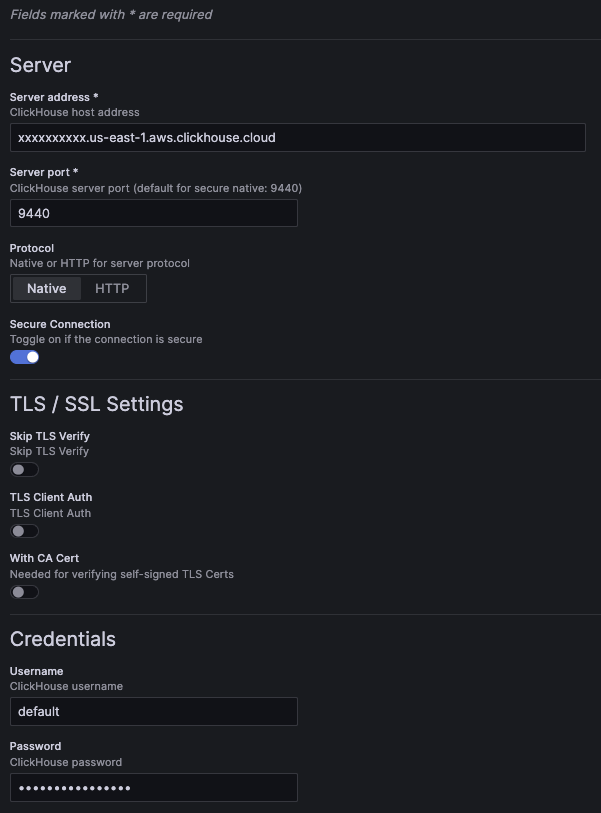
設定画面の例:
共通設定の例となる YAML 設定:
jsonData:
  host: 127.0.0.1 # (required) server address.
  port: 9000      # (required) server port. For native, defaults to 9440 secure and 9000 insecure. For HTTP, defaults to 8443 secure and 8123 insecure.

  protocol: native # (required) the protocol used for the connection. Can be set to "native" or "http".
  secure: false    # set to true if the connection is secure.

  username: default # the username used for authentication.

  tlsSkipVerify:     <boolean> # skips TLS verification when set to true.
  tlsAuth:           <boolean> # set to true to enable TLS client authentication.
  tlsAuthWithCACert: <boolean> # set to true if CA certificate is provided. Required for verifying self-signed TLS certificates.

secureJsonData:
  password: secureExamplePassword # the password used for authentication.

  tlsCACert:     <string> # TLS CA certificate
  tlsClientCert: <string> # TLS client certificate
  tlsClientKey:  <string> # TLS client key
UI から構成を保存すると、version プロパティが追加されます。これは、その構成がどのバージョンのプラグインで保存されたかを示します。
HTTP プロトコル
HTTP プロトコルで接続する場合は、追加の設定項目が表示されます。
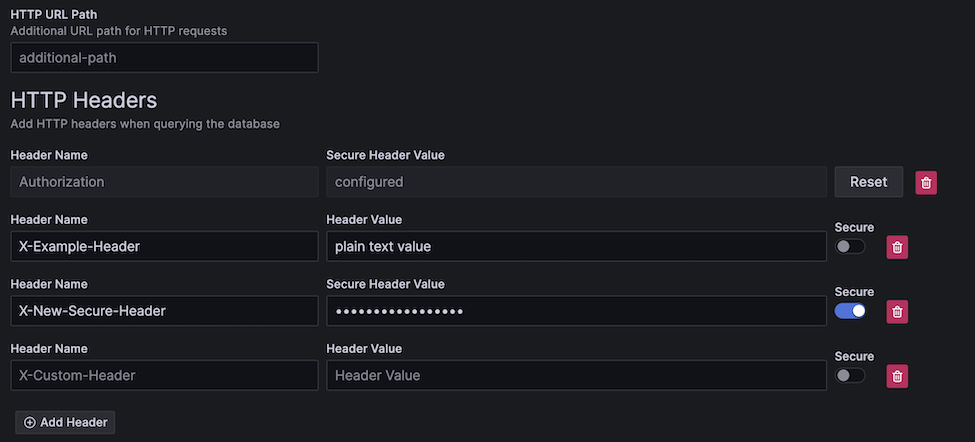
HTTP パス
HTTP サーバーが別の URL パス配下で公開されている場合は、そのパスをここに指定します。
jsonData:
  # excludes first slash
  path: additional/path/example
サーバーに送信されるリクエストにカスタムヘッダーを追加できます。
ヘッダーはプレーンテキストまたはセキュアとして指定できます。
すべてのヘッダーキーはプレーンテキストで保存され、セキュアヘッダーの値はセキュアコンフィグに保存されます(password フィールドと同様)。
HTTP 経由でのセキュア値
セキュアヘッダーの値はコンフィグ上では安全に保存されますが、セキュア接続が無効な場合、その値は HTTP 経由で送信されます。
プレーン/セキュアヘッダー用の YAML の例:
jsonData:
  httpHeaders:
  - name: X-Example-Plain-Header
    value: plain text value
    secure: false
  - name: X-Example-Secure-Header
    # "value" is excluded
    secure: true
secureJsonData:
  secureHttpHeaders.X-Example-Secure-Header: secure header value
追加設定
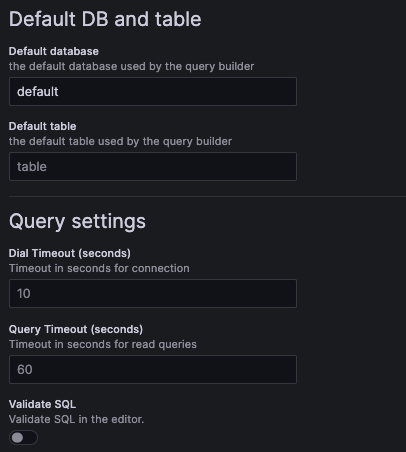
これらの追加設定は任意です。
YAML の例:
jsonData:
  defaultDatabase: default # default database loaded by the query builder. Defaults to "default".
  defaultTable: <string>   # default table loaded by the query builder.

  dialTimeout: 10    # dial timeout when connecting to the server, in seconds. Defaults to "10".
  queryTimeout: 60   # query timeout when running a query, in seconds. Defaults to 60. This requires permissions on the user, if you get a permission error try setting it to "0" to disable it.
  validateSql: false # when set to true, will validate the SQL in the SQL editor.
OpenTelemetry
OpenTelemetry (OTel) は、このプラグインに深く統合されています。
OpenTelemetry のデータは、exporter plugin を使用して ClickHouse にエクスポートできます。
最適に利用するためには、logs と traces の両方に対して OTel を構成することを推奨します。
強力なオブザーバビリティワークフローを可能にする機能である data links を有効にするには、これらのデフォルト設定を構成しておく必要もあります。
Logs
ログ用クエリビルダーを高速化するために、ログクエリ向けのデフォルトのデータベース/テーブルおよびカラムを設定できます。これにより、クエリビルダーが実行可能なログクエリで事前読み込みされ、Explore ページでのブラウジングがオブザーバビリティ用途でより高速になります。
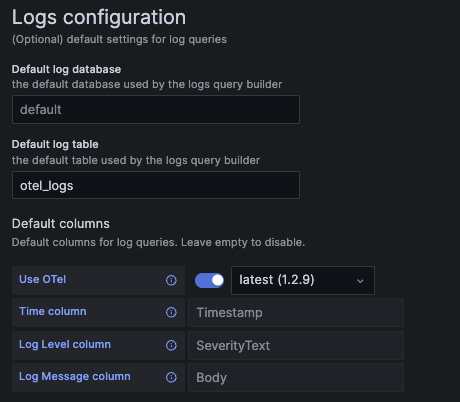
OpenTelemetry を使用している場合は、「Use OTel」スイッチを有効にし、default log table を otel_logs に設定する必要があります。
これにより、選択した OTel スキーマバージョンを使用するようにデフォルトのカラムが自動的に上書きされます。
ログに OpenTelemetry は必須ではありませんが、ログ/トレースを単一のデータセットとして扱うことで、data linking を用いた、よりスムーズなオブザーバビリティワークフローが可能になります。
ログ設定画面の例:
ログ設定 YAML の例:
jsonData:
  logs:
    defaultDatabase: default # default log database.
    defaultTable: otel_logs  # default log table. If you're using OTel, this should be set to "otel_logs".

    otelEnabled: false  # set to true if OTel is enabled.
    otelVersion: latest # the otel collector schema version to be used. Versions are displayed in the UI, but "latest" will use latest available version in the plugin.

    # Default columns to be selected when opening a new log query. Will be ignored if OTel is enabled.
    timeColumn:       <string> # the primary time column for the log.
    levelColumn:   <string> # the log level/severity of the log. Values typically look like "INFO", "error", or "Debug".
    messageColumn: <string> # the log's message/content.
トレース
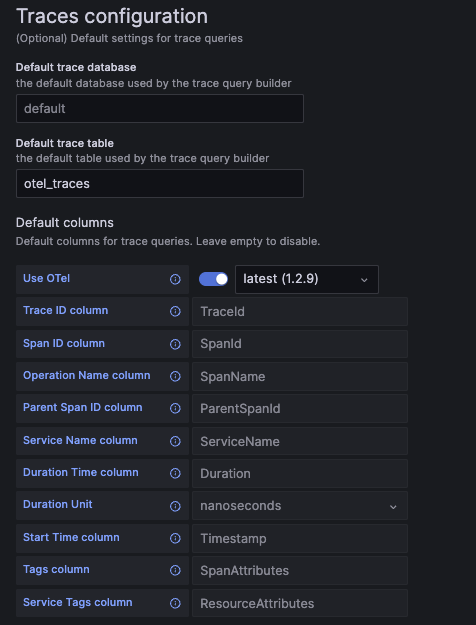
トレース用のクエリ作成を高速化するには、トレースクエリ用のデフォルトのデータベース/テーブルおよびカラムを設定します。これにより、クエリビルダーに実行可能なトレース検索クエリがあらかじめ読み込まれ、Explore ページでのオブザーバビリティデータの閲覧が高速になります。
OpenTelemetry を使用している場合は「Use OTel」スイッチを有効にし、default trace table を otel_traces に設定します。
これにより、選択された OTel スキーマバージョンを使用するようにデフォルトのカラムが自動的に上書きされます。
OpenTelemetry は必須ではありませんが、この機能はトレースにそのスキーマを使用する場合に最も効果的に動作します。
トレース設定画面の例:
トレース設定 YAML の例:
jsonData:
  traces:
    defaultDatabase: default  # default trace database.
    defaultTable: otel_traces # default trace table. If you're using OTel, this should be set to "otel_traces".

    otelEnabled: false  # set to true if OTel is enabled.
    otelVersion: latest # the otel collector schema version to be used. Versions are displayed in the UI, but "latest" will use latest available version in the plugin.

    # Default columns to be selected when opening a new trace query. Will be ignored if OTel is enabled.
    traceIdColumn:       <string>    # trace ID column.
    spanIdColumn:        <string>    # span ID column.
    operationNameColumn: <string>    # operation name column.
    parentSpanIdColumn:  <string>    # parent span ID column.
    serviceNameColumn:   <string>    # service name column.
    durationTimeColumn:  <string>    # duration time column.
    durationUnitColumn:  <time unit> # duration time unit. Can be set to "seconds", "milliseconds", "microseconds", or "nanoseconds". For OTel the default is "nanoseconds".
    startTimeColumn:     <string>    # start time column. This is the primary time column for the trace span.
    tagsColumn:          <string>    # tags column. This is expected to be a map type.
    serviceTagsColumn:   <string>    # service tags column. This is expected to be a map type.
カラムエイリアス
カラムエイリアスは、同じデータに対して異なる名前や型を割り当ててクエリするための便利な方法です。
エイリアスを使うと、ネストされたスキーマをフラット化し、Grafana で簡単に選択できるようにできます。
次のような場合にエイリアスが有用です。
- 自分のスキーマと、そのほとんどのネストされたプロパティ/型を把握している
- データを Map 型で保存している
- JSON を文字列として保存している
- 選択するカラムに対して、変換のための関数を頻繁に適用している
テーブル定義の ALIAS カラム
ClickHouse にはカラムのエイリアス機能が組み込まれており、Grafana でもそのまま利用できます。
エイリアスカラムはテーブル上で直接定義できます。
CREATE TABLE alias_example (
  TimestampNanos DateTime(9),
  TimestampDate ALIAS toDate(TimestampNanos)
)
上記の例では、ナノ秒単位のタイムスタンプを Date 型に変換する TimestampDate というエイリアスを作成しています。
このデータは最初のカラムのようにディスクには保存されず、クエリ実行時に計算されます。
テーブルに定義されたエイリアスは SELECT * では返されませんが、これはサーバーの設定で変更できます。
詳細については、ALIAS カラム型のドキュメントを参照してください。
カラムエイリアステーブル
デフォルトでは、Grafana は DESC table のレスポンスに基づいてカラム候補を提示します。
場合によっては、Grafana が認識するカラムを完全に上書きしたいことがあります。
これにより、カラム選択時に Grafana 上でスキーマを意図的に見えにくくでき、テーブルの複雑さによってはユーザーエクスペリエンスを向上させられます。
テーブル側で定義するエイリアスに比べた利点は、テーブル自体を変更することなく簡単に更新できる点です。
スキーマによってはエントリが数千件に及ぶことがあり、元のテーブル定義が煩雑になる可能性があります。
また、ユーザーに無視してほしいカラムを非表示にすることもできます。
Grafana では、エイリアステーブルは次のカラム構造を持つ必要があります。
CREATE TABLE aliases (
  `alias` String,  -- The name of the alias, as seen in the Grafana column selector
  `select` String, -- The SELECT syntax to use in the SQL generator
  `type` String    -- The type of the resulting column, so the plugin can modify the UI options to match the data type.
)
エイリアステーブルを使うと、ALIAS カラムと同じ動作を次のように再現できます。
CREATE TABLE example_table (
  TimestampNanos DateTime(9)
);

CREATE TABLE example_table_aliases (`alias` String, `select` String, `type` String);

INSERT INTO example_table_aliases (`alias`, `select`, `type`) VALUES
('TimestampNanos', 'TimestampNanos', 'DateTime(9)'), -- Preserve original column from table (optional)
('TimestampDate', 'toDate(TimestampNanos)', 'Date'); -- Add new column that converts TimestampNanos to a Date
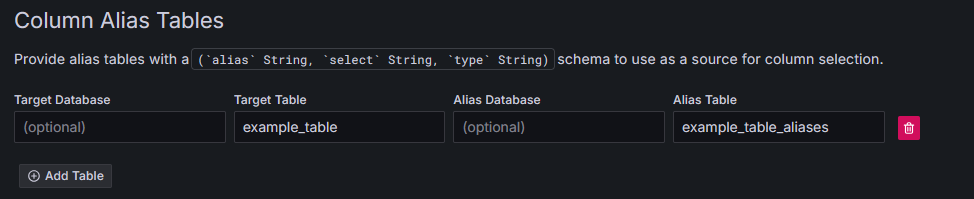
次に、このテーブルを Grafana で使用できるように構成します。名前は任意であり、別のデータベース内で定義することもできます:
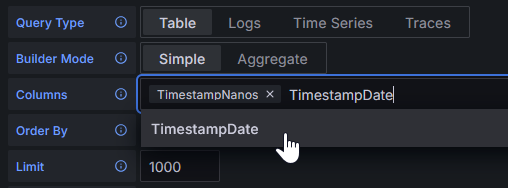
これで Grafana は、DESC example_table の結果ではなく、エイリアステーブルの結果を参照するようになります:
両方の種類のエイリアスを、複雑な型変換や JSON フィールドの抽出を行うために使用できます。
すべての YAML オプション
ここでは、プラグインで利用可能なすべての YAML 設定オプションを一覧しています。
一部のフィールドには値の例が示されており、その他のフィールドはフィールドの型のみを示しています。
YAML を使用したデータソースのプロビジョニング方法の詳細については、Grafana のドキュメントを参照してください。
datasources:
  - name: Example ClickHouse
    uid: clickhouse-example
    type: grafana-clickhouse-datasource
    jsonData:
      host: 127.0.0.1
      port: 9000
      protocol: native
      secure: false
      username: default
      tlsSkipVerify: <boolean>
      tlsAuth: <boolean>
      tlsAuthWithCACert: <boolean>
      defaultDatabase: default
      defaultTable: <string>
      dialTimeout: 10
      queryTimeout: 60
      validateSql: false
      httpHeaders:
      - name: X-Example-Plain-Header
        value: plain text value
        secure: false
      - name: X-Example-Secure-Header
        secure: true
      logs:
        defaultDatabase: default
        defaultTable: otel_logs
        otelEnabled: false
        otelVersion: latest
        timeColumn: <string>
        levelColumn: <string>
        messageColumn: <string>
      traces:
        defaultDatabase: default
        defaultTable: otel_traces
        otelEnabled: false
        otelVersion: latest
        traceIdColumn: <string>
        spanIdColumn: <string>
        operationNameColumn: <string>
        parentSpanIdColumn: <string>
        serviceNameColumn: <string>
        durationTimeColumn: <string>
        durationUnitColumn: <time unit>
        startTimeColumn: <string>
        tagsColumn: <string>
        serviceTagsColumn: <string>
    secureJsonData:
      tlsCACert:     <string>
      tlsClientCert: <string>
      tlsClientKey:  <string>
      secureHttpHeaders.X-Example-Secure-Header: secure header value